
This guide provides a clear step-by-step process for setting up a New Form Submission Alert for patients on the CoachCare platform. By following these instructions, healthcare providers can efficiently track responses to forms, ensuring timely interventions. This feature enhances patient care management and streamlines communication within the clinic. Anyone responsible for patient monitoring will benefit from this user-friendly guide.
1. Navigate to CoachCare patient account in Legacy Mode

2. Click 'Add New Alert' button

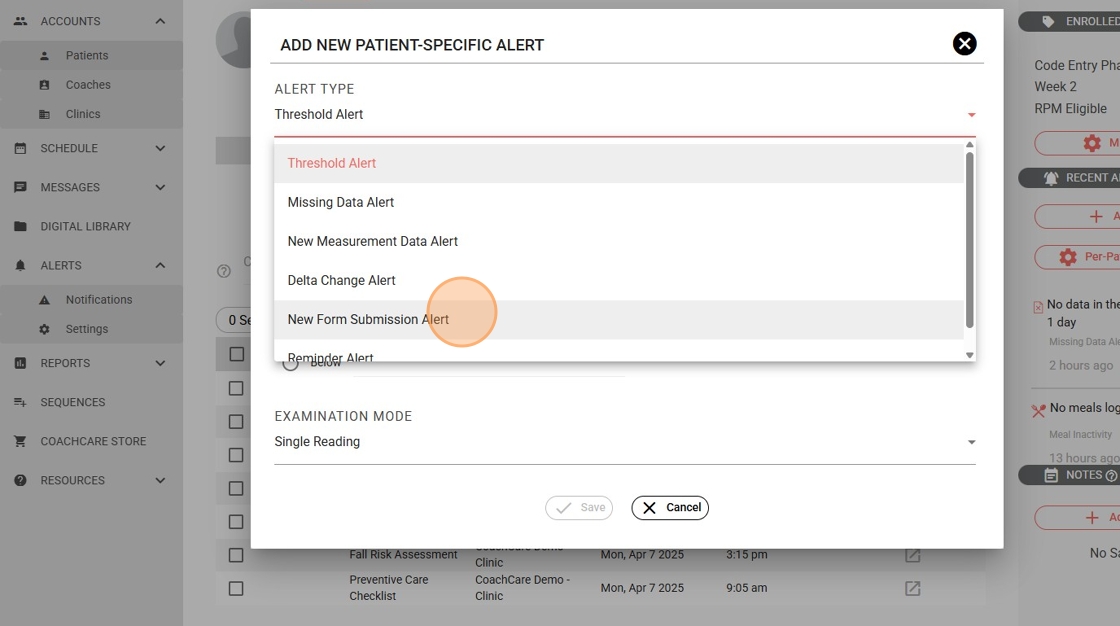
3. Click 'Alert Type' drop-down to choose 'New Form Submission Alert'

4. Click 'New Form Submission Alert'
5. Click the 'Search Form by Name' field to choose the form name

6. Choose the required form to alert. Example: 'Pain Tracking Questions'

7. If a particular form alert is not configured for the clinic, a message will appear stating: 'A clinic-wide alert will be created automatically and set to disabled, as one does not currently exist.'
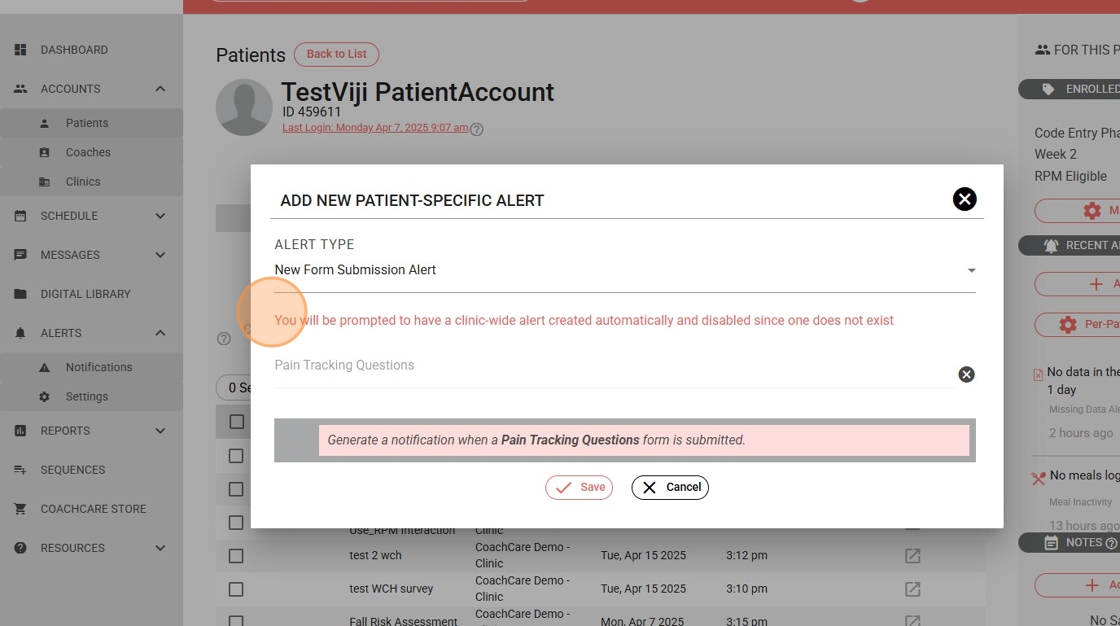
8. Click the "Save" button

9. To confirm again, a pop-up window will display the message: 'This alert will only apply to this patient. A clinic-wide alert will be created and disabled to enable this feature.'

10. Click 'Yes'

11. The 'New Form Submission Alert' has been created for the patient. To confirm, click on 'Per-Patient Alert Settings.'
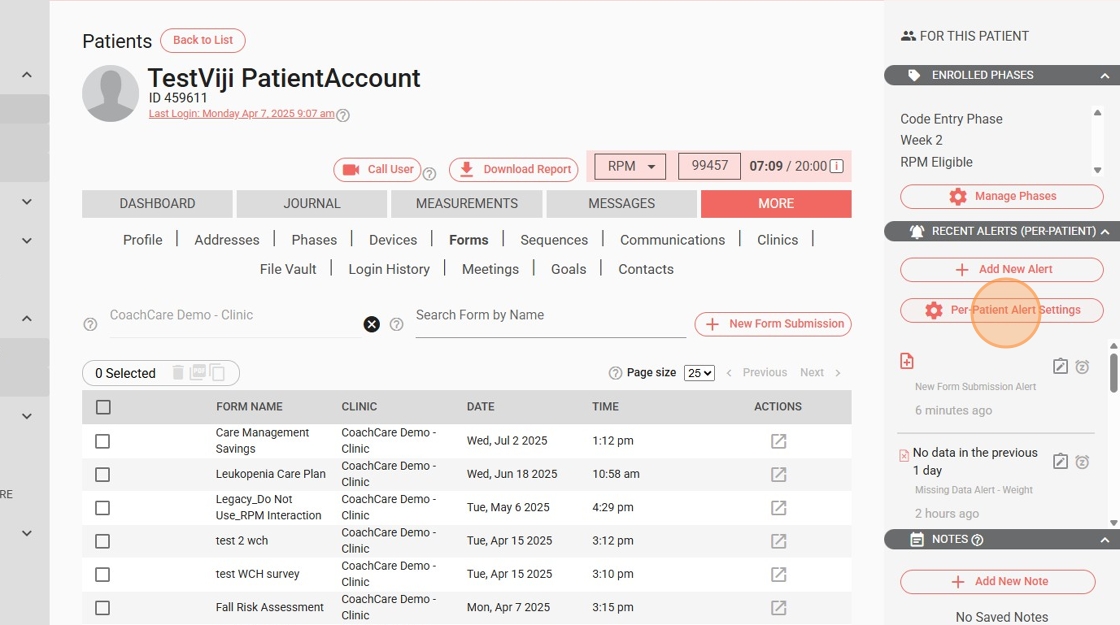
12. Go to the "Alert Settings" and scroll down

13. You will be able to see the form alert is enabled for that patient 'New Form Submission Alert - Form name'

14. Click "close" button to exit the window

Create New Form Submission Alert for Patients - Monitoring Mode
1. Navigate to the CoachCare patient account in Monitoring Mode

2. Go to the 'Alerts Cards' section and click "Add New" button

3. Click 'New Form Submission Alert'

4. Click the 'Search Form by Name' field.
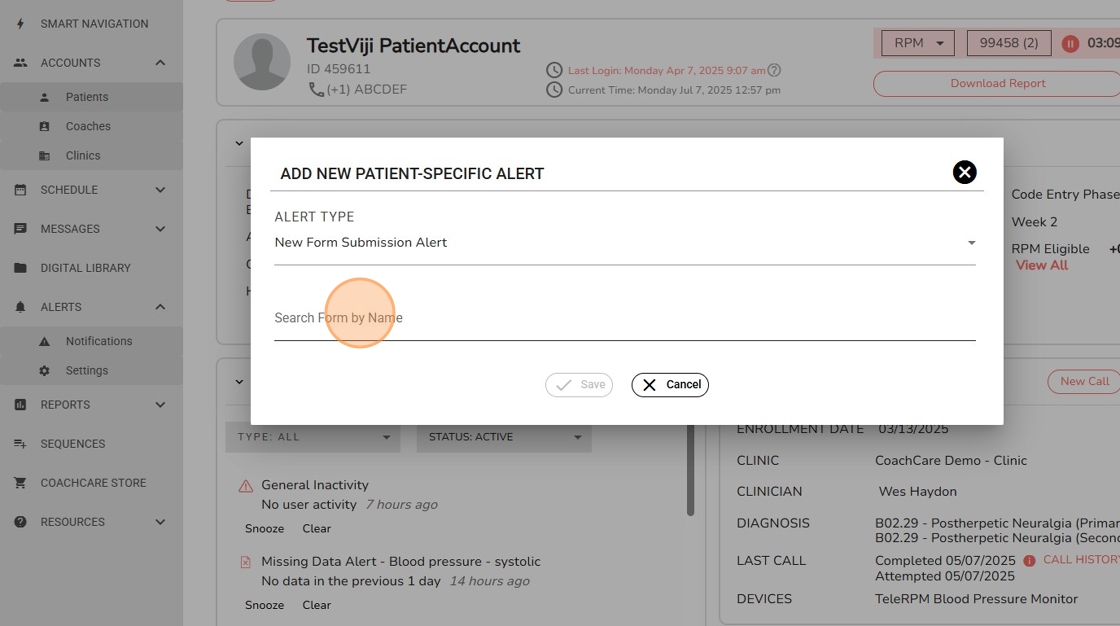
5. Choose the need form to alert - ex: 'Medication Reconciliation'

6. If a particular form alert is not configured for the clinic, a message will appear stating: 'A clinic-wide alert will be created automatically and set to disabled, as one does not currently exist.' Then click "Save."

7. To confirm again, a pop-up window will display the message: 'This alert will only apply to this patient. A clinic-wide alert will be created and disabled to enable this feature.'
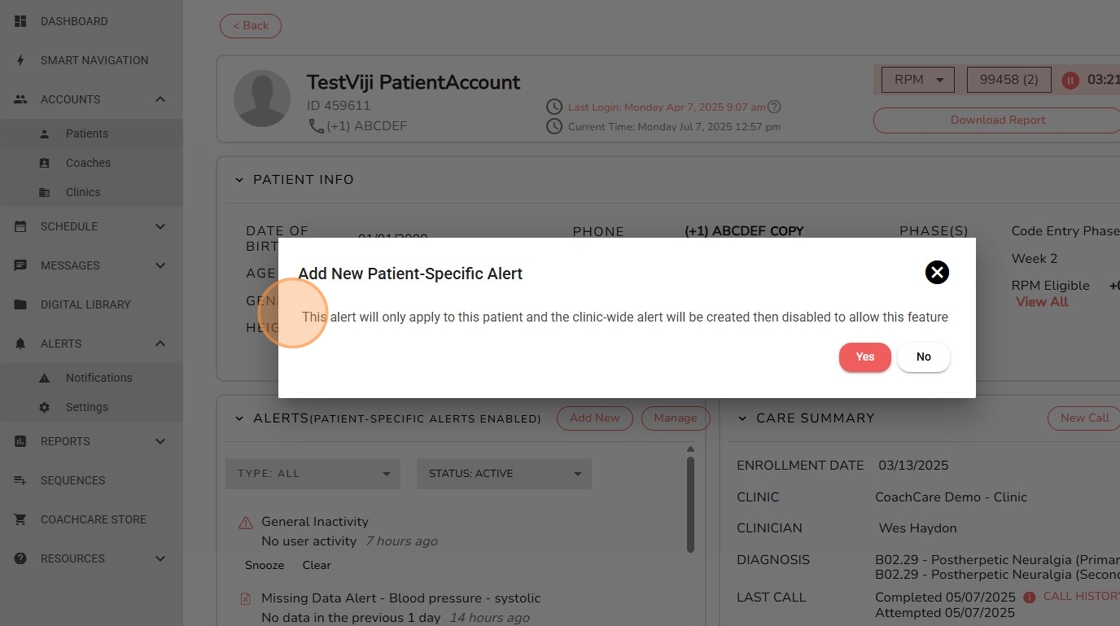
8. Click "Yes." The 'New Form Submission Alert' has been created for the patient.

9. To confirm, click on 'Manage' in the Alert Card

10. Click 'Alert Settings'
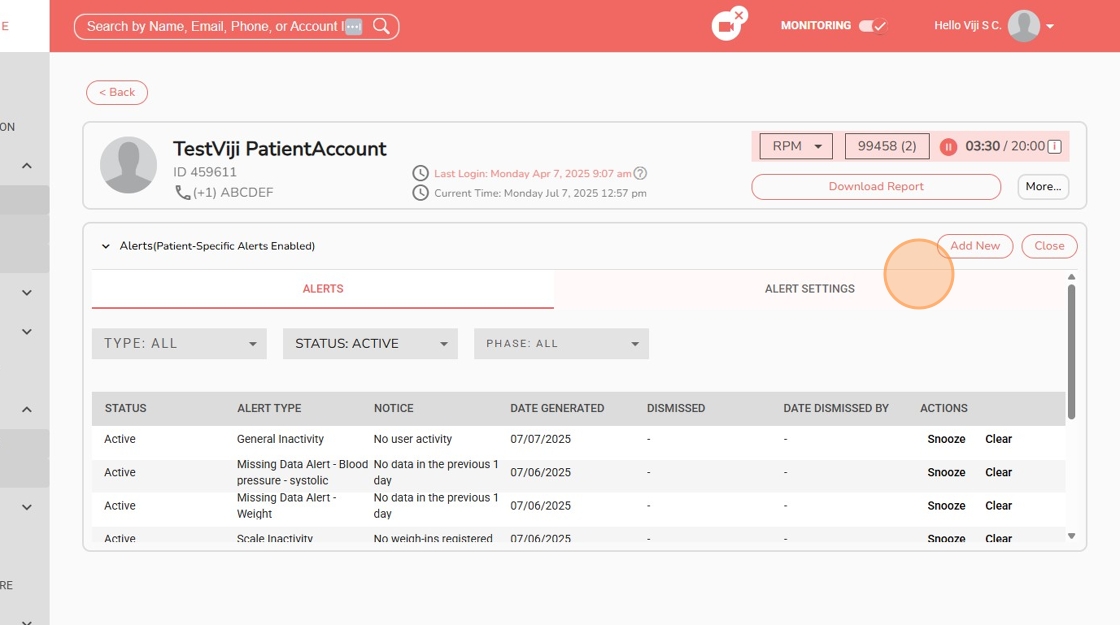
11. Check the 'New Form Submission Alert' is enabled with the checkbox toggled on and it will show in a darker text color. To edit/delete, use the respective icon if needed

Comments
0 comments
Article is closed for comments.