
This guide provides a step-by-step process for setting up patient-specific Delta Change Alerts in CoachCare, ensuring you can monitor critical metrics like weight changes effectively. By following these instructions, healthcare professionals can enhance patient care through timely notifications and customized alerts. The guide also addresses potential issues with clinic-wide alerts, ensuring users can navigate any challenges seamlessly. Overall, this resource is essential for optimizing patient monitoring within the platform.
1. Navigate to CoachCare Patient Account
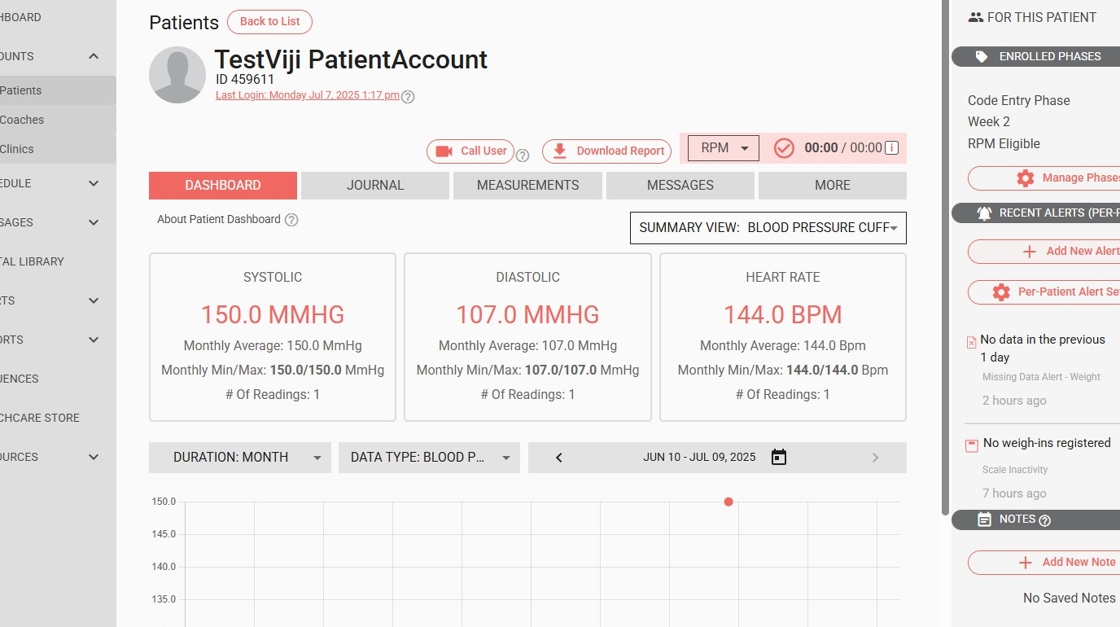
2. Click "Add New Alert" button

3. Check the 'Alert Type' dropdown to choose 'Delta Change' Alert

4. Choose 'Delta Change Alert' from the dropdown

5. Choose the Metric to alert on

6. From the dropdown, choose the required Metrics. For ex: Weight
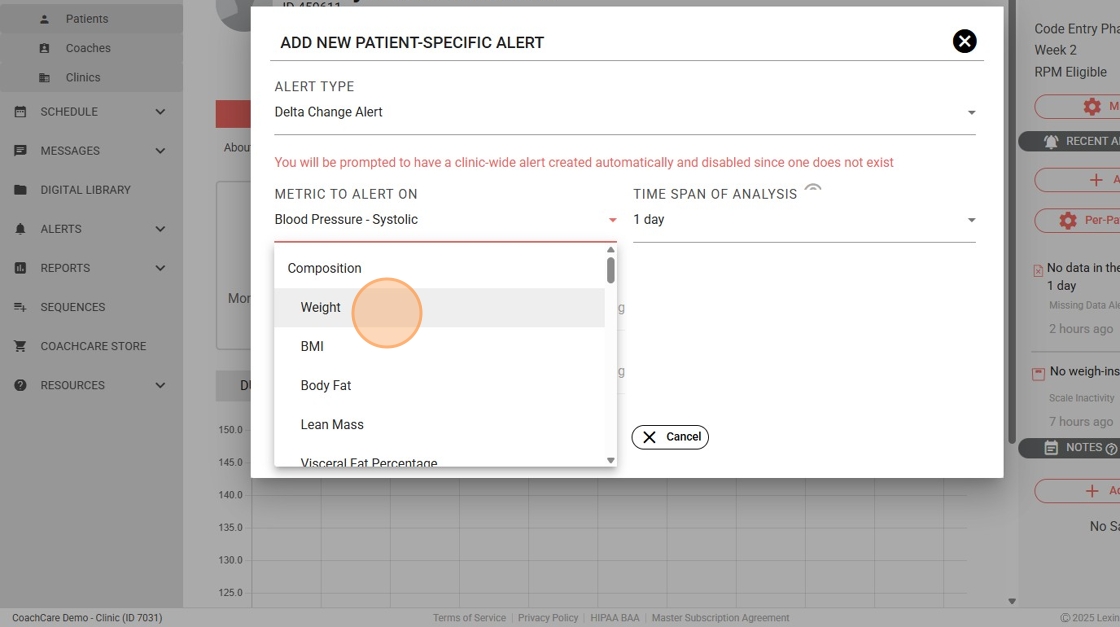
7. Choose the 'Time Span of Analysis' from the drop-down

8. Choose the required no. of days as needed. For ex: '1 day'

9. Choose the alert value either 'above' or 'below' to be triggered. Ex: Above

10. Enter the requirement no. of value in the respective field. For Ex:' 3'
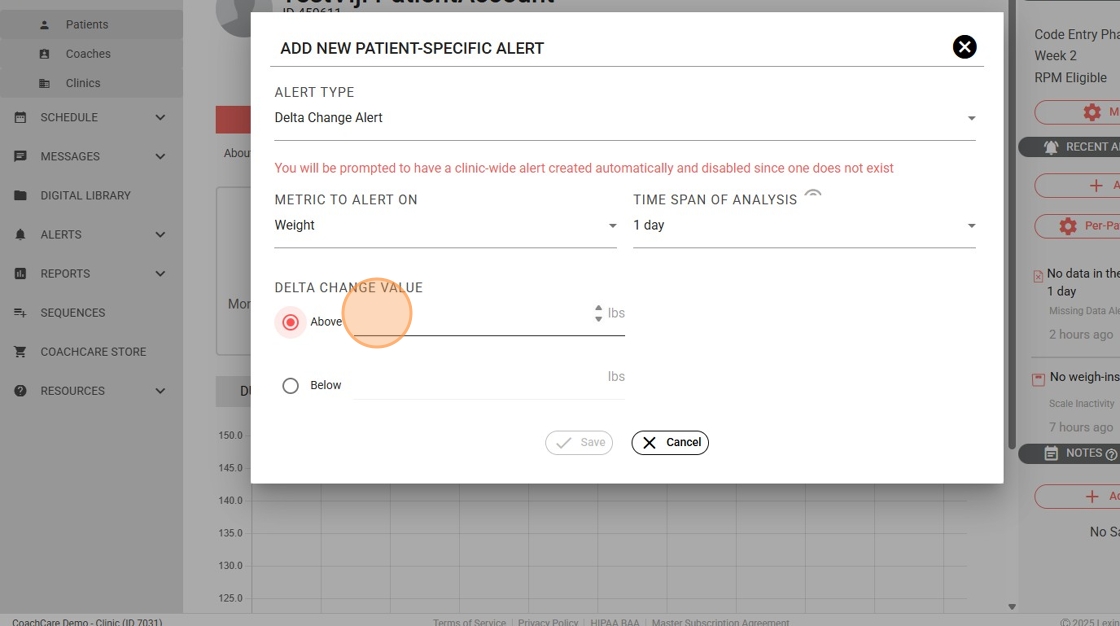
11. If a particular 'Delta Change Alert' is not configured for the clinic, a message will appear stating: 'A clinic-wide alert will be created automatically and set to disabled, as one does not currently exist.'

12. Click 'Save'

13. To confirm again, a pop-up window will display the message: 'This alert will only apply to this patient. A clinic-wide alert will be created and disabled to enable this feature.'

14. Click 'Yes'

15. The 'Delta Change Alert' has been created for the patient.

16. To confirm, click on 'Per-Patient Alert Settings.'

17. Click 'Alert Settings' and scroll down

18. You will able to see the 'Delta Change Alert' is enabled for that patient 'Delta Change Alert - <metric name>'

Setting Up Delta Change Alerts at Patient Level in CoachCare - Monitoring Mode
1. Navigate to CoachCare Patient account
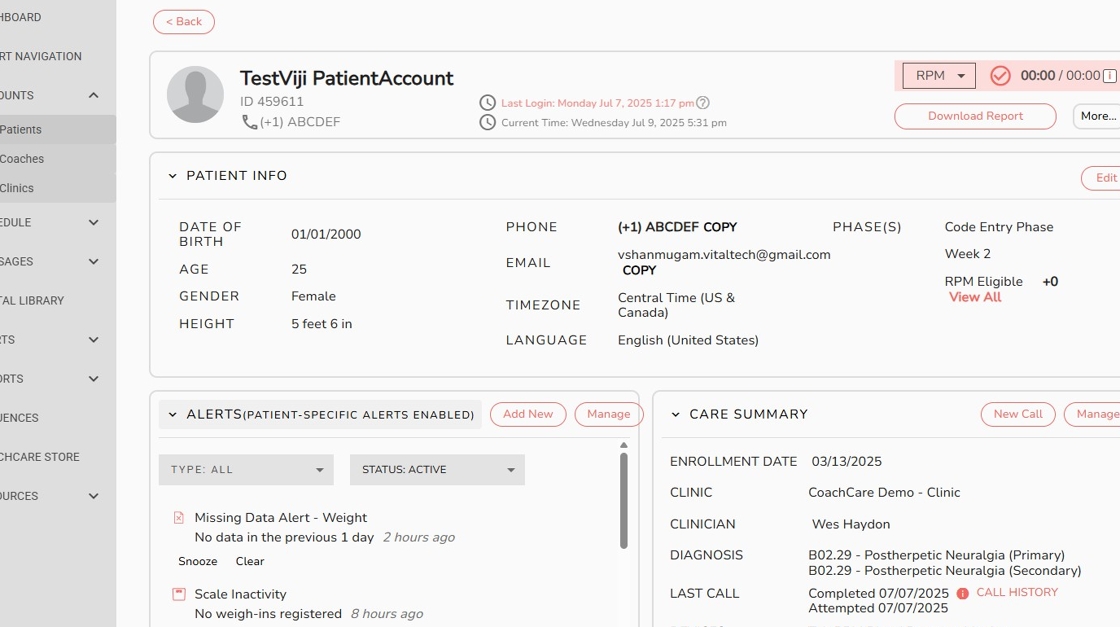
2. In the 'Alerts' tile, click 'Add new' button to create an alert

3. Click 'Delta Change Alert'
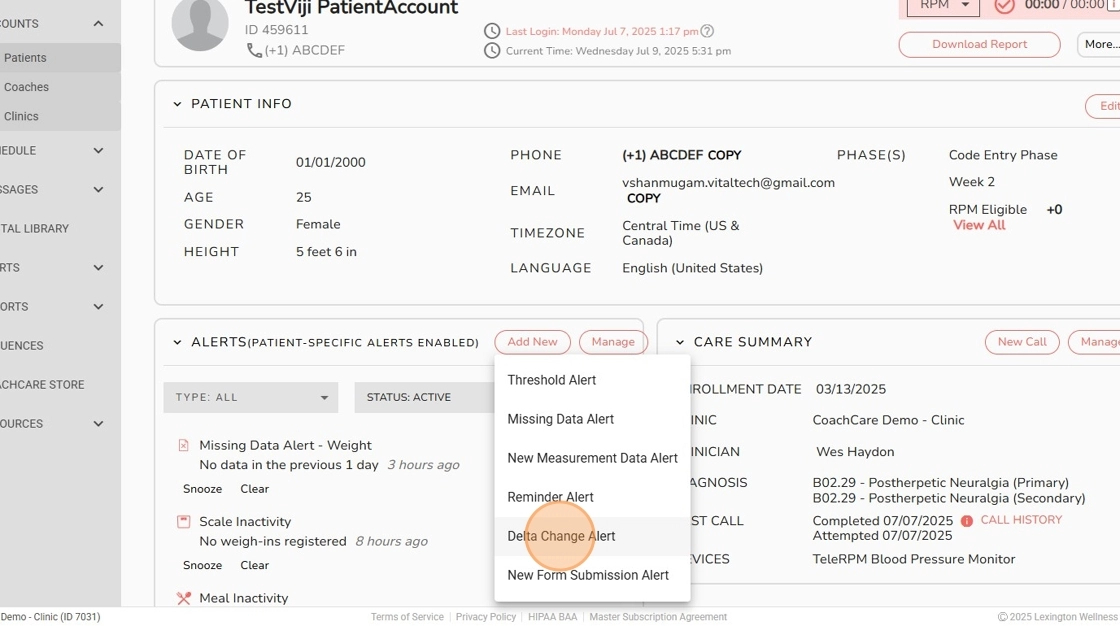
4. Check the 'Alert Type' drop-down to choose 'Delta Change Alert'

5. Choose the Metric to alert on from the drop-down, choose the required Metrics. For ex: heart rate

6. Choose the 'Time Span of Analysis' from the drop-down

7. Choose the alert value either 'Above' or 'Below' to be triggered. Ex: Above

8. Enter the requirement no. of value in the respective field. For Ex:' 20'

9. If a particular 'Delta Change Alert' is not configured for the clinic, a message will appear stating: 'A clinic-wide alert will be created automatically and set to disabled, as one does not currently exist.'

10. Click 'Save'

11. To confirm again, a pop-up window will display the message: 'This alert will only apply to this patient. A clinic-wide alert will be created and disabled to enable this feature.'

12. Click 'Yes'

13. The 'Delta Change Alert' has been created for the patient.

14. To confirm, click on 'Alert Settings' tab

15. You will able to see the 'Delta Change Alert' is enabled for that patient 'Delta Change Alert - <Metric Name>'

Comments
0 comments
Article is closed for comments.